
Batch Data Importing
If you have hundreds of products you want to track, our batch data importing tool helps you get started quickly.
- No credit card required
- 14-day free trial
You can easily access and download reports on a daily, weekly, or monthly basis by specifying the type of document you need and the specific date range you are interested in. Moreover, you have the option to tailor the imported data according to your preferences, such as including or excluding specific competitors, brands, categories, and other relevant elements.
It’s important to stay informed by regularly adding new competitors and products to your dashboard. By utilizing Prisync’s tool, you can automatically gather all the required data from your marketplace. Importing and customizing your data becomes particularly beneficial when you are looking to expand your ecommerce presence across multiple platforms like Google Shopping, Shopify, and Amazon.
Monitor limitless data and get accurate analysis!
Explore more on Batch Data Importing

Frequently Asked Questions
How do I import my product list into Prisync?
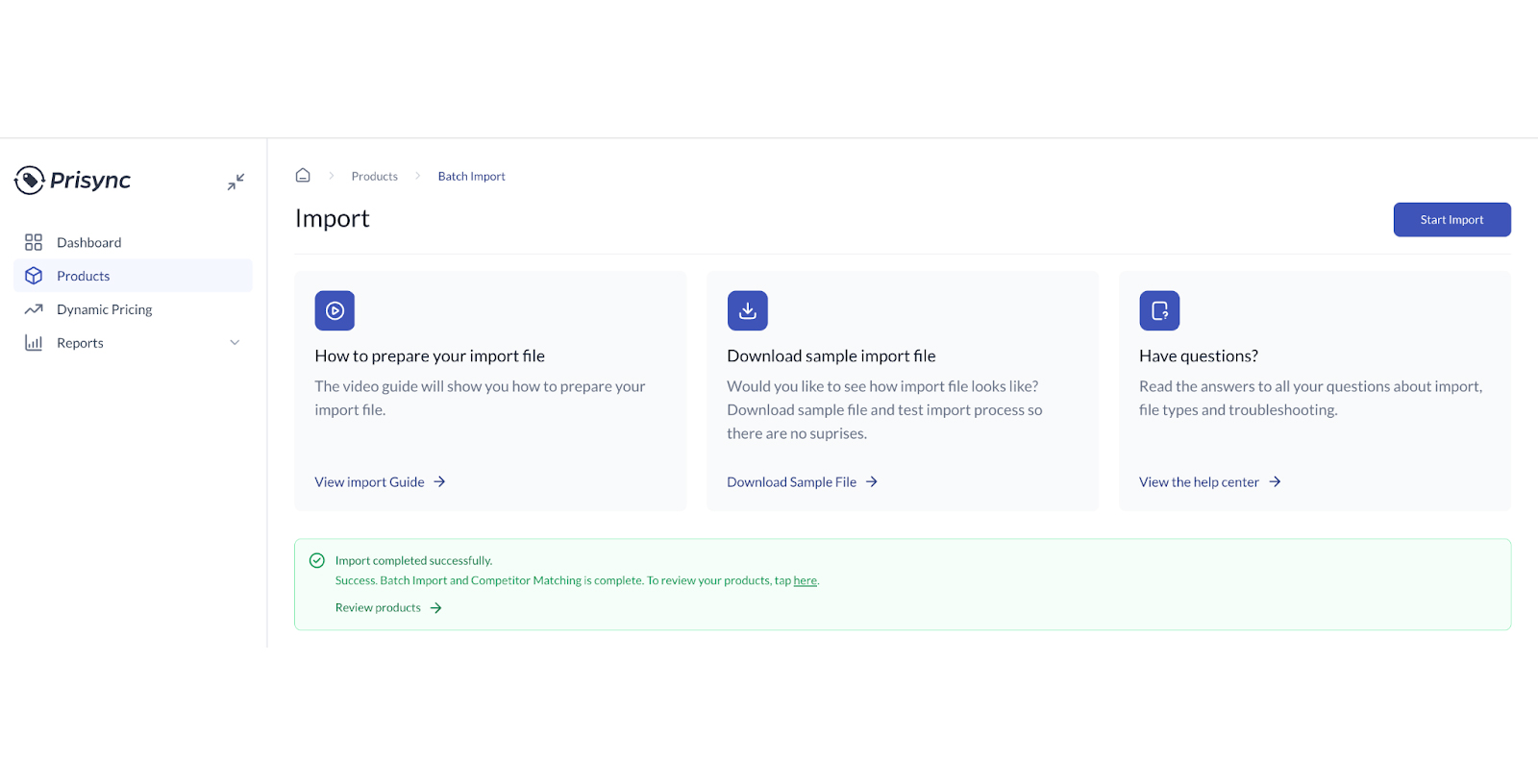
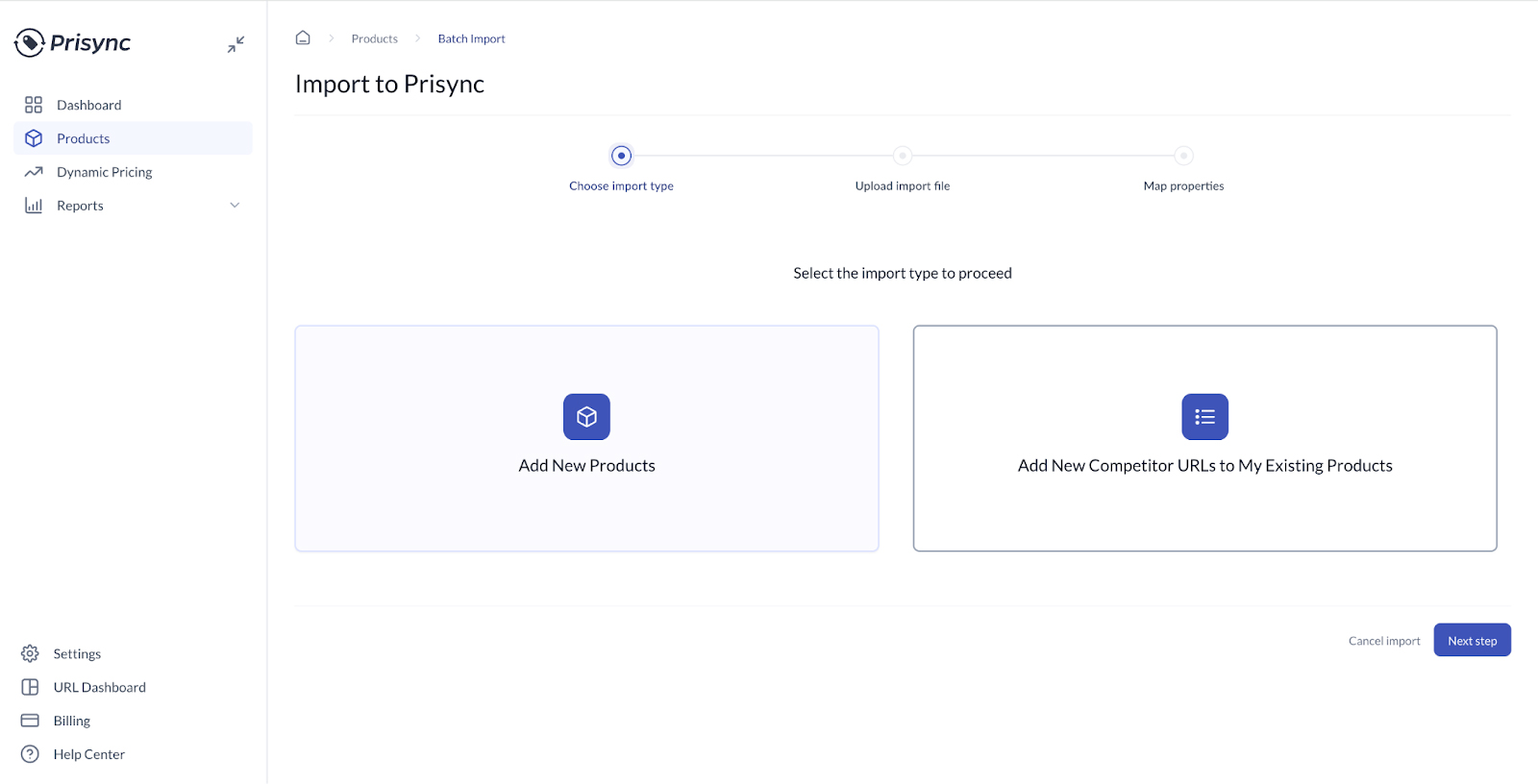
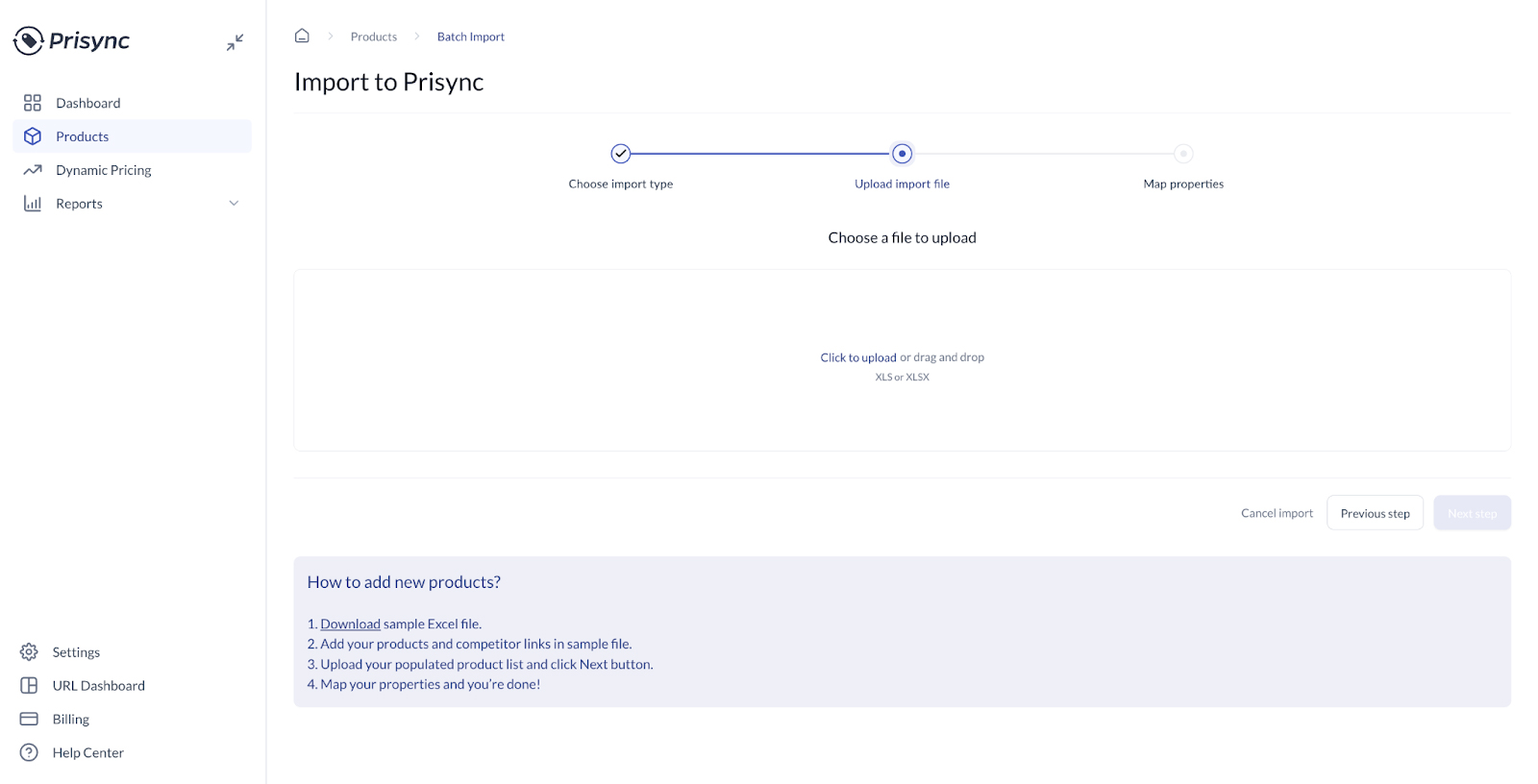
There are a few ways to import your products into your dashboard. If you have many products, you can use the Batch Data Importing tool. Click the ‘Import’ button on the Products page, select ‘Start Import’, and choose between the ‘Add New Products’ or ‘Add New Competitor URLs to My Existing Products’ options. The next step is to prepare and upload your data with the provided template. In the template, you will find predefined columns for product information, including Name, Product Code, Barcode, Brand, Category, Product Cost, Additional Cost, and Your Own URL. The second method is to add products manually using the ‘Add Single Product’ button, or to sync them quickly if your Shopify store is integrated.
What file formats are supported for batch importing?
To add products and their URLs in bulk, you will need to prepare and upload your data in an Excel (.xlsx) file. You can download the sample Excel template that Prisync provides from the ‘Add New Products’ page and fill it out with the necessary product information. Keep in mind that the Name, Brand, and Category fields are mandatory, and if these fields are left blank, the product will not be imported. Suppose you do not have information for Brand and/or Category, you can enter them as “No Brand” and “No Category”. If you want to see your price index and position, fill out the ‘Add Your Own URL’ section as well.
Can I sync my product data directly from my ecommerce platform?
Yes, you can! If you are a Shopify user, you can automatically import products to your Prisync dashboard with a single click. In fact, we strongly advise you to import products directly from Shopify rather than using a product sheet. Non-Shopify users can also use API to automatically import products.
How long does the initial batch import process take?
Once you upload your Excel file and map your properties, the system processes your data very quickly. Click the ‘Complete Import’ button to see a summary of your import status and start tracking prices.
Want to get in touch? Ask anything to us!
Our batch data import tool is simple to use.
If you have further questions, please let us know by contacting us.