
Excel Reporting
Get all of your pricing data about you and your competitors in a categorized Excel reporting. The price and stock change sheets are the best to get into the details. Receive Excel reports in your inbox daily without restrictions on the number of recipients.
- No credit card required
- 14-day free trial
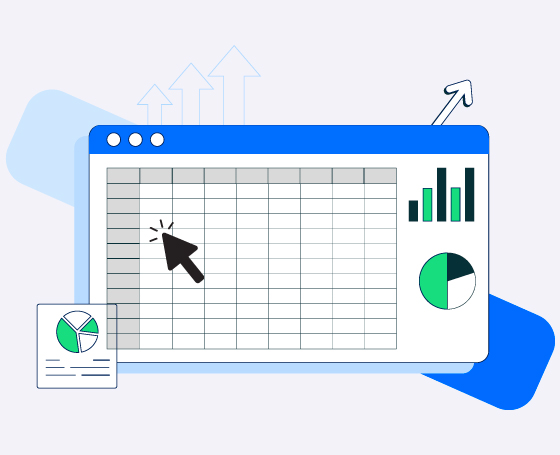
Prisync users are provided with the convenient option to generate detailed Excel reports. They can initiate this process by simply clicking the ‘Export’ button located on the Products page or by opting to receive Excel Report notifications. Additionally, users have the ability to apply specific filters to their selection, allowing them to conduct targeted searches and export only the relevant products of interest.
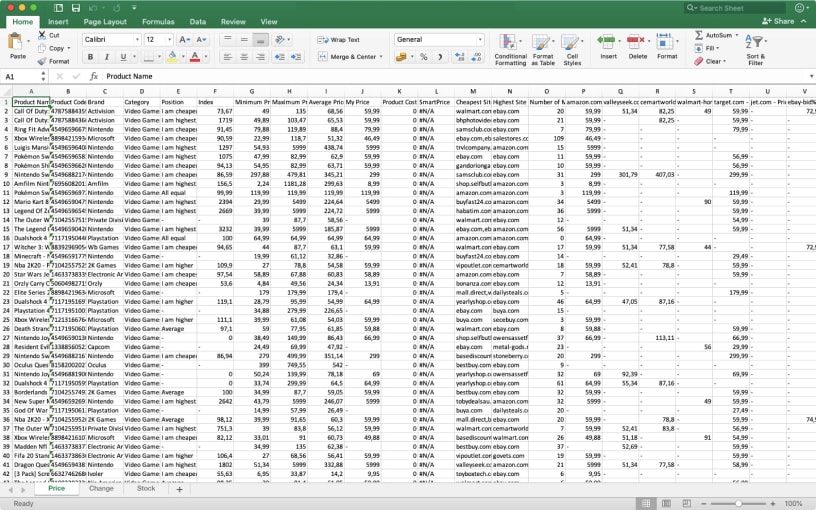
These comprehensive reports will encompass a wide range of valuable information, including overall brand, category, and product data. By utilizing these reports, users are able to effectively monitor their competitors’ stock availability, track price changes, analyze their brand’s performance and market position across various websites, and assess their price index value.
Get all your pricing data in a detailed excel report!
We’ve got more for you to check out!
Frequently Asked Questions
Can I download my competitor price data in Excel format?
Yes. Prisync’s service lets you download all reports as Excel documents. You can export all your data into an Excel report by clicking the export button on your dashboard/ products page. This way, you can monitor your competitors’ stock availability and price changes, your brand’s performance & position in the market, all the sites you are tracking, and your index value, whether your products are priced as the cheapest, average, or highest.
Is it possible to schedule automated Excel reports?
Yes. Our daily email notification feature lets you have your Excel report automatically (except Professional plan users) every day. Receive Excel reports in your inbox daily without restrictions on the number of recipients.
Which data fields are included in the Excel export?
In your Excel report, product name, category, brand, lowest price, maximum price, average price, and all the competitor websites in the market will appear, too. Your reports will include information on your overall brand, category, and products.
Can I customize the columns in my pricing reports?
You can customize the columns in your pricing reports once you have exported them. However, users can apply specific filters to their selection, enabling targeted searches and exporting only the relevant products (e.g. specific brands/products/categories). Just select which information you would like to receive a report for by going to the ‘Products’ section on the left part of the dashboard. Press the ‘Filters’ button to select your desired information. You will get a notification once your report is ready to download in the ‘Export Reports’ dropdown. This way, you can customize or crunch the data by filtering what you want to see in your report in the first place.
Want to get in touch? Ask anything to us!
Our Excel reporting helps when you need to customize or crunch data further down the line.